

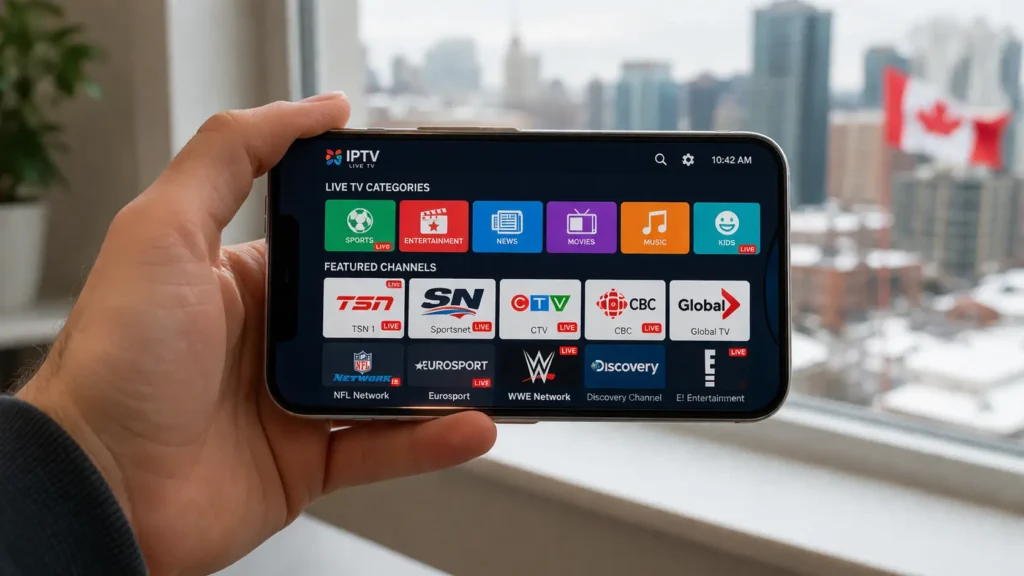
Your iPhone or iPad is a fully capable IPTV device. If you have an IPTV subscription and a stable internet connection, you can watch live TV, sports, movies, and series anywhere in Canada directly from your iOS device. Setting up IPTV on iPhone Canada takes less than five minutes.
Unlike Android, iOS is a closed ecosystem. You can only install apps from the Apple App Store. You can’t sideload APK files or use apps like TiviMate (which is Android only). But the App Store has several solid IPTV players that work well on iPhone and iPad, including IPTV Smarters, Smarters Player Lite, GSE Smart IPTV, and others.
This guide covers the best IPTV apps for iOS, step by step installation, how to connect your IPTV subscription, how to use AirPlay to watch on your TV, mobile data usage, offline limitations, and iOS specific troubleshooting.
If you need an IPTV subscription that works with iOS devices, you can browse available plans with instant activation.
Best IPTV Apps for iPhone and iPad in 2026
Not every IPTV app survives Apple’s strict App Store review process. The apps listed below are available in the Canadian App Store as of 2026 and work reliably with most IPTV providers.
IPTV Smarters (Smarters Player Lite)
This is the most popular IPTV app on iOS. It supports Xtream Codes API and M3U URL login, includes EPG (TV Guide), and organizes content into Live TV, Movies, and Series. The interface is clean and easy to navigate with touch controls. It’s free to download and use.
Note: On iOS, the app may appear as Smarters Player Lite in the App Store. It’s the same app from the same developer, just rebranded for Apple’s guidelines.
Best for: Most users. Simple setup, works with virtually all IPTV providers.
GSE Smart IPTV
GSE Smart IPTV is a powerful and flexible IPTV player for iPhone and iPad. It supports M3U, JSON, and Xtream Codes playlists. It also includes a built in player with support for multiple audio tracks, subtitles, and parental controls. The interface is more advanced than Smarters, which gives you more options but also a slightly steeper learning curve.
Best for: Users who want more control over playback settings and playlist management.
IPTV (Watch TV Online)
This app by Nguyen Van Sy has strong ratings in the App Store (4.5+ stars). It supports M3U playlists and EPG, has a clean interface, and works on iPhone, iPad, and Mac (Apple Silicon). The free version has limitations, but the Pro upgrade unlocks full functionality.
Best for: Users who want a polished, well reviewed app with good EPG support.
STRIMIX
STRIMIX is a newer free IPTV player that appeared in the App Store in late 2024. It supports Xtream Codes, M3U playlists, and MAG/Stalker portals. It works on iPhone, iPad, Apple TV, and Mac. User reviews highlight its fast channel switching and clean layout. The developer states it does not collect user data.
Best for: Privacy focused users and those who also want the same app on Apple TV.
iPlayTV
iPlayTV is a premium IPTV player designed specifically for Apple TV but also works on iPhone and iPad. It has a sleek interface and strong EPG support. It costs a one time fee (around C$7.99) with no recurring subscription for the app itself.
Best for: Users who want a premium, native Apple experience and are willing to pay once for the app.
How to Install an IPTV App on iPhone or iPad
All IPTV apps on iOS are installed through the Apple App Store. No jailbreaking is required.
Step 1: Open the App Store on your iPhone or iPad.
Step 2: Tap the Search tab at the bottom and type the name of your chosen app (for example, “IPTV Smarters” or “GSE Smart IPTV”).
Step 3: Find the correct app in the search results. Check the developer name and ratings to make sure you’re downloading the right one.
Step 4: Tap Get (or the download icon) and confirm with Face ID, Touch ID, or your Apple ID password.
Step 5: Wait for the app to install, then tap Open.
That’s it. The app is now on your device and ready to be configured with your IPTV subscription.
How to Add Your IPTV Subscription on iOS
Once your app is installed, you need to connect it to your IPTV provider using the login credentials they sent you. There are two common methods.
Method 1: Xtream Codes API (Recommended)
This is the easiest method on iPhone because you only need to type a short server URL, a username, and a password.
- Open your IPTV app.
- Tap Add User, Add Playlist, or Login (the wording varies by app).
- Select Xtream Codes API or Login with Xtream Codes.
- Enter the Server URL (for example: http://yourprovider.com:port).
- Enter your Username.
- Enter your Password.
- Tap Add User or Login.
- Wait for your channels, movies, and EPG data to load.
Your IPTV provider sends these credentials by email or WhatsApp after you subscribe. If you’re not sure which method your provider supports, check your welcome email or contact their support team.
Method 2: M3U URL
M3U is a long URL that contains your entire playlist. It works on all IPTV apps but is harder to type on a phone keyboard because the URL is usually very long.
- Open your IPTV app.
- Tap Add Playlist or Load M3U URL.
- Paste or type your full M3U URL.
- Tap Add or OK.
- Wait for the channels to load.
Tip: If your provider sent the M3U URL by email, open the email on your iPhone, long press the URL, and copy it. Then paste it directly into the app. This avoids typos and saves time.
How to Set Up EPG (TV Guide) on iOS
If you use Xtream Codes, the EPG usually loads automatically. If you use M3U, you may need to add the EPG URL manually:
- Go to your app’s Settings.
- Find EPG or TV Guide.
- Enter the EPG XML URL your provider gave you.
- Tap Update or Refresh.
The TV guide will then show the current and upcoming programs for each channel.
How to Watch IPTV on Your TV Using AirPlay
Watching IPTV on your iPhone is great for on the go, but sometimes you want the content on your big screen. AirPlay lets you mirror or cast your iPhone or iPad screen to any Apple TV or AirPlay compatible Smart TV.
How to Use AirPlay
- Make sure your iPhone/iPad and your Apple TV (or AirPlay TV) are connected to the same Wi-Fi network.
- Open your IPTV app and start playing a channel.
- Swipe down from the top right corner of your iPhone to open Control Center.
- Tap Screen Mirroring.
- Select your Apple TV or AirPlay TV from the list.
- Your IPTV stream will appear on the TV screen.
AirPlay Tips
Use Screen Mirroring, not just AirPlay audio. Some IPTV apps don’t support native AirPlay video casting, so Screen Mirroring is the most reliable method.
Keep your phone plugged in. Streaming and AirPlay at the same time drains your battery quickly. Use a charger while watching.
Expect a small delay. AirPlay adds about 1 to 3 seconds of latency. For live sports, this is barely noticeable but worth knowing.
For the best quality, connect both devices to the 5GHz Wi-Fi band. This reduces interference and gives you smoother video on the TV.
If you don’t have an Apple TV, you can also use an HDMI adapter (Lightning to HDMI or USB C to HDMI depending on your iPhone model) to connect your phone directly to the TV. This gives a wired connection with zero latency.
Mobile Data Usage for IPTV on iPhone
Streaming IPTV over cellular data (4G LTE or 5G) works, but it uses significant data. If you’re on a limited data plan, keep an eye on your usage.
Estimated Data Consumption
| Quality | Data Per Hour | Data Per 30 Minutes |
|---|---|---|
| SD (480p) | ~1 GB | ~500 MB |
| HD (720p) | ~2 GB | ~1 GB |
| Full HD (1080p) | ~3 GB | ~1.5 GB |
| 4K UHD | ~7 GB | ~3.5 GB |
Watching one hour of HD IPTV on your phone uses about 2 to 3 GB. If you stream during a daily commute (30 minutes each way), that’s roughly 2 to 3 GB per day, or 40 to 60 GB per month just for IPTV.
Tips to Manage Data Usage
Lower the stream quality. Most IPTV apps let you choose the video quality in settings. Switch to SD or 720p when streaming on mobile data to save bandwidth.
Use Wi-Fi whenever possible. Stream on your home Wi-Fi or any trusted network to avoid eating into your cellular data allowance.
Monitor your usage. On iPhone, go to Settings > Cellular > scroll down to find your IPTV app and see how much data it has used.
Check your data plan. Most Canadian carriers (Rogers, Bell, Telus, Freedom, Videotron) offer plans with 20 to 100 GB of data. If you stream IPTV regularly on mobile, make sure your plan can handle it, or consider upgrading to an unlimited option.
Can You Watch IPTV Offline on iPhone?
No. IPTV is a live streaming service. It requires an active internet connection at all times. You cannot download live TV channels for offline viewing.
Some IPTV providers include a VOD (Video on Demand) library with movies and series, but even VOD content streams in real time. It is not downloadable for offline playback on most IPTV apps.
This is one of the honest limitations of IPTV compared to services like Netflix or Disney+, which allow you to download content for offline watching. If offline viewing matters to you, IPTV is best used as a complement to those services, not a complete replacement for every use case.
iOS Specific Troubleshooting
IPTV App Not Available in the Canadian App Store
Apple occasionally removes IPTV apps from certain regions. If you can’t find the app you want:
- Search for both the app name and the developer name.
- Try alternative apps like Smarters Player Lite, GSE Smart IPTV, or STRIMIX.
- Check if the app was renamed (IPTV Smarters sometimes appears as “Smarters Player Lite” on iOS).
Login Failed or “Unable to Connect”
- Double check your server URL, username, and password. Copy and paste from your provider’s email to avoid typos.
- Make sure the server URL includes http:// or https:// and the correct port number.
- Test on Wi-Fi first. Some cellular networks block certain ports used by IPTV.
- Confirm your IPTV subscription is active by contacting your provider.
App Crashes or Freezes
- Update the app to the latest version in the App Store.
- Update your iPhone or iPad to the latest iOS version (Settings > General > Software Update).
- Clear the app’s playlist cache inside the app settings.
- Close all background apps and restart your device (power off completely, then turn back on).
- Delete and reinstall the app if the problem persists.
Buffering on iPhone
- Test your internet speed at Speedtest.net. You need at least 10 Mbps for HD on mobile.
- Switch from cellular data to Wi-Fi, or move closer to your router.
- Close other apps using bandwidth in the background.
- Turn off Low Power Mode (it reduces background network activity and can affect streaming).
- If you’re on Wi-Fi, connect to the 5GHz band instead of 2.4GHz.
For a complete buffering troubleshooting guide, check our article on how to fix IPTV buffering.
EPG Not Showing or Wrong Time
- Go to Settings > General > Date & Time on your iPhone and make sure Set Automatically is turned on.
- Inside the IPTV app, go to settings and tap Refresh EPG or Update Guide.
- If the time is offset, look for an EPG Time Shift setting in the app and set it to +0.
Is IPTV Legal on iPhone in Canada?
Yes. IPTV technology and the apps used to stream it are completely legal. The apps in the Apple App Store are media players that don’t host content. What matters is the source of the content you’re watching. For a full explanation, read our guide on whether IPTV is legal in Canada.
Frequently Asked Questions
1. What is the best IPTV app for iPhone in Canada?
IPTV Smarters (listed as Smarters Player Lite in the App Store) is the most popular and widely compatible option. It works with almost every IPTV provider and supports both Xtream Codes and M3U login. For more advanced features, GSE Smart IPTV is a strong alternative.
2. Can I use TiviMate on iPhone or iPad?
No. TiviMate is an Android only app. It is not available in the Apple App Store and cannot be installed on iOS devices. The best alternatives on iPhone are IPTV Smarters, GSE Smart IPTV, and STRIMIX.
3. How much data does IPTV use on iPhone?
HD streaming uses about 2 to 3 GB per hour. SD uses about 1 GB per hour. 4K uses approximately 7 GB per hour. If you stream daily on cellular data, plan for 40 to 100 GB per month depending on quality and viewing time.
4. Can I AirPlay IPTV from my iPhone to my TV?
Yes. Use Screen Mirroring from your iPhone’s Control Center to cast your IPTV stream to any Apple TV or AirPlay compatible Smart TV. Both devices must be on the same Wi-Fi network. You can also use a Lightning to HDMI or USB C to HDMI adapter for a wired connection.
5. Why does my IPTV app keep crashing on iPhone?
The most common causes are outdated iOS, a full app cache, or low device storage. Update your iPhone to the latest iOS version, clear the app cache in the IPTV app settings, and make sure you have at least 1 GB of free storage. If the app keeps crashing, delete it and reinstall from the App Store.
Start Watching IPTV on Your iPhone Today
Setting up IPTV on iPhone and iPad in Canada is quick and simple. Download an app from the App Store, enter your IPTV credentials, and you’re streaming live TV, sports, and movies wherever you go. Use AirPlay when you want to watch on the big screen, and Wi-Fi whenever possible to save on mobile data.
The key to a smooth iOS IPTV experience is choosing a provider with stable servers and proper Xtream Codes support for iOS apps. Browse IPTV subscription plans and start streaming on your iPhone or iPad today.
For setup instructions on other devices, visit our installation guide.